
- On the commons website click on your class time
- Click on the assignments or posts you wish to answer
- Read the directions
- In the comment section answer what is being asked, post your pictures, etc.
- You can choose to click “notify me of follow up comments via email.”
- Click “post comment.”
Category: Posts

How to write a post:
How to write a post:
1. On the commons website click on your class time
2. click on the assignments or posts you wish to answer
3. Read the directions
4. In the comment section answer what is being asked, post your pictures, etc
5. You can choose to click “notify me of follow up comments via email”
6. Click “post comment”

How to Write a Post
By Ann Marie Broome
Students are required to post and respond to posts throughout the semester. Each student must create a user profile in order to access the class website. After creating the profile, students can use the following steps to post to the WGS1001 website.
- Log on to the class website at https://wgs1001sp21.commons.gc.cuny.edu/ using your log in credentials.
- Select your assigned class from the menu on the left side.
- Once you are in the correct class, click on the +New icon on the top black menu bar.
- Select Post from the three menu options. The first time you log in, pop-ups will appear to give you hints and features about posting.
- Start typing to choose a Block or to select design options.
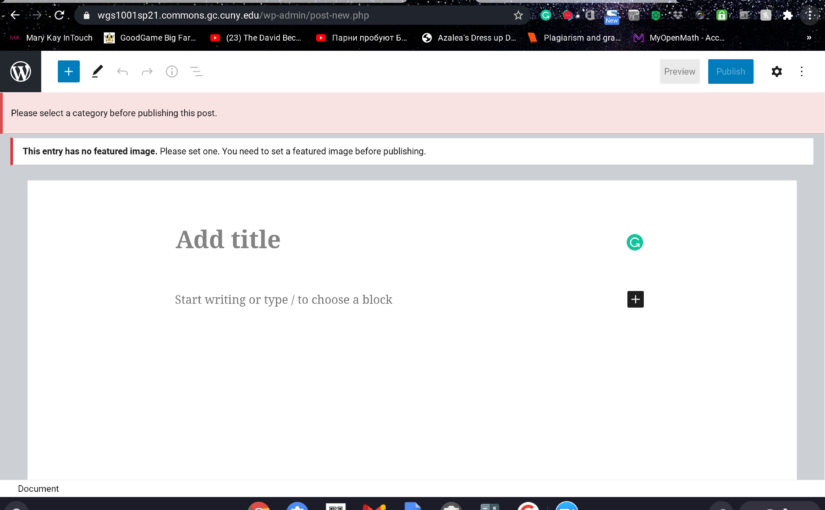
- To add a photo, click on the blue + at the top left and scroll down to Image or Gallery. Select your saved photo and click on Upload. You can write a caption for the photo by clicking directly on the photo.
- Continue writing the post using the editing features available to format your entry.
- Proof read the text, checking for grammatical errors and ensuring the format looks good. You can also preview your post by clicking the Preview button in the top right.
- Before the final step, you will have to add a featured image to the post, this will appear a the top. Go to Document in the right panel and scroll down to Featured Image. Upload your saved image.
- When you are satisfied with the post, click on the Publish icon in the top right.
How to write a post:
- Log onto the Commons website using your username and password.
- Select your course, for example, “Intro to Women, Gender and Sexuality Studies class: Tuesday and Thursday, 9;30”
- Click on the assignments.
- Above the menu, you will be able to see “+New”, click on it and then on “Post”.
- You will see a new document template and you can start writing your post.


How to make a post
- Go to this link posted on Blackboard in Announcements section. -.https://wgs1001sp21.commons.gc.cuny.edu.-
2. Go to “Register” and create your account.
3. After you registered, you need to activate your account through the link you can find on your college email. Follow the link in your college email and you will be redirected into this site.
4. Push “Tuesdays only 5:05 pm” and you will find “Assignments” section. Read carefully and explore this site well and you will find a lot of interesting information on how to navigate, find professors explanations about this assignment.
5. To make a post just hit the ” + ” on the top and choose “Post”.
6. You made a post. Awesome!

How To Write a Post
By: Olivia Francis
Step 1:
Go to this website website and login or create an account https://wgs1001sp21.commons.gc.cuny.edu
Step 2:

Join your desired courses
Step 3:

At the top left corner of the screen you will see a + button. Once you click that, three options should appear.
Post & Media & Document
Click on post and start writing. Don’t forget to upload a featured image and choose a category!

How to write a post
- Go to your class website and login.https://wgs1001sp21.commons.gc.cuny.edu
- At the top you will see a +New button. After clicking that, three options should appear.
- Post
- Media
- Document
- Click on post and start writing then upload.

How To: Make A Post
- Login to Class website on Commons. you can also go through blackboard just go to WGST and click on the Class website link that way.
- Click on the Class session you attend (For example mines is: Tuesday Only 5:05 pm)
- On the top of the screen on the Black bar there is tab that says “+ New” under that are the options :
- “Post”
- “Media”
- “Document”
- Click on post to create a post.

How to Make a Post
By: Shai Hutchinson
:max_bytes(150000):strip_icc():format(webp)/GettyImages-887987150-5c770377c9e77c00011c82e6.jpg)
Here are the Steps to Creating a Post:
Step 1: Log in to the Commons classpage through this URL: https://wgs1001sp21.commons.gc.cuny.edu
-Make sure you have created a username and password for the Commons classpage using your CUNY email
Step 2: Once you have created an account and signed in, make sure you have joined the course “Intro to Women, Gender, and Sexual Studies”
– Once signed in, you will be directed to the dashboard page of the class
– If you would like to see the class site, go to the top left hand corner on the dashboard page, where you will see the class name (Intro to Women, Gender, and Sexual Studies)
– Find your class date and time and click on it- over here you will be directed to all your assignments for your designated class
Step 3: Click on the “+new” button the top of the screen
– This will give u three options (post, media or document)- you will choose post
– This will direct you to a new page in which you will see “title” – this will be the page where you will be making your post
Step 4: Create and Submit your Post
– Create your post and submit it by clicking the blue publish button at the top right side of the screen
How to Make a Post

- Go to the commons website and log in with your username and password.
- Join the course so you will be able to know what assignments you need to do.
- Look on the upper left side of the screen to see the icon “+New” and click it. You will then click “post.”
- Read the directions and begin writing your post.
- Click Publish when done.

