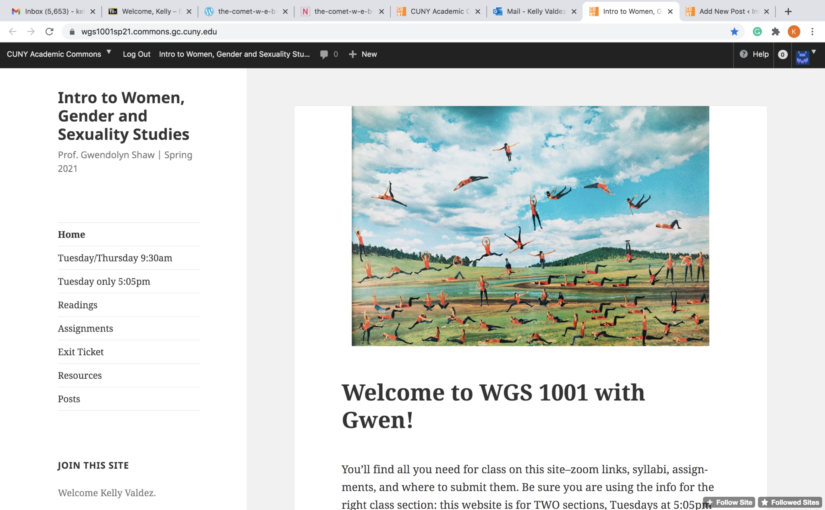
First step, Make sure to log into my commons account with your user name and password. In CUNY Academy Common page, find the course directory and you search by course name such as Women gender.
Second step, you will see Intro to Women, Gender and Sexuality Studies but make sure semester: Fall 2021 and the instructor name is Gwen Shaw. Then click the site which is Intro to Women, Gender and Sexuality Studies (Public site).
Third step,then you will see page clicks Tuesday only 5:05 pm. After you click, you will see this page which will be in assignments, you have to check to see what has been posted by your instructor and follow the instructions for task assignment. Make sure you read this carefully.
Fourth step, on the left hand above the menu, you will see “+New”. Click on this icon and then click ”Post”.
Fifth step, You can start adding your title, write about the assignment which was assigned by your Professor and add an image and other links.
Final step, Make sure you check your writing so that it falls under the guidelines which has been asked for the assignment
Once you’ve created a commons account and sign in, you can create a post by selecting the class section you’re in on the left column and click the “+ new” button the header. There, you will be allowed to select post and viola!
After signing in with your username and password, make sure you joined the course. Next, select the class you are in (either the Tuesday/Thursday 9:30am or Tuesday only 5:05pm).
Then, look at the top left hand side of the black banner, you will see a “+ NEW” tab, hover your mouse over this tab and then a drop down menu should appear, click on the word “post”.
Lastly, type whatever you need to post. The website will also give you a little tutorial on all the posting features the website provides. When you are finished and ready to post, make sure you have selected a category on the menu on the right hand side of the screen and have set a featured photo that relates to your post, when finished click publish which should be located on the top right hand part of the screen in blue.
Creating a post is quite simple follow the steps below.
Ensure you are on the WGS 1001 section site of the commons for the Tues/Thurs 9:30 a.m section for Professor Shaw.
2. Also be sure you are logged in and to join this site
3. The next step is to simply click the plus sign which says new. Upon clicking new it will give you a few options.
4. Click post and start typing what you want to post and you can insert any images by clicking the plus sign just tapping or hovering with your mouse where you post. This is also known as adding a block.
5. The last step is to either save your draft or publish it.
Make sure you joined the site. If you have not, you won’t be able to get the option to create a post.
Now that you are active on the site, on the top left corner you will see a black banner with different options. Select “+NEW” and then “Post”
On this new page, you will be given several prompts on how to create a post.
Select the “+ Add Block” option on the top left corner. Now, you can find helpful options for how you choose to visually set up your post. Some examples are shown below:
Make sure to select “Save Draft” if you’re not done with your post.
If you are done with your post, you will need to set up a featured image for your post. Select here on the side bar and upload an image of your choice:
Now you can go ahead and select to publish your post!
Log onto the Commons website with your username and password.
Once on the Common site, make sure that you are in the right course with the correct weekday and time that corresponds with your Intro to Women, Gender and Sexuality Studies class.
Once you’re sure that you’re in the correct class, click on assignments located in the menu.
Once you’re in assignments, check to see what has been posted by your instructor and follow the instructions for the particular task assigned. Read this carefully.
Above the menu, you will see “+New”, click on this and then click “Post”.
You will now be able to add a title, write the assignment you have, and add a featured photo.
Make sure your post is clear, grammatically correct, and is following the guidelines of the assignment.
Click the assignment or post that you are required to do
Read the directions and then begin
You can post a picture, text, bullet points, etc
You can choose to click notify me of follow up comments to email
Click “publish”
Need help with the Commons?
Email us at [email protected] so we can respond to your questions and requests. Please email from your CUNY email address if possible. Or visit our help site for more information: